How to Check For Malware Before It Causes Damage
Most people assume malware is constant pop-ups, loud warnings, or a completely broken system. But this is the belief that exactly makes modern software so effective nowadays. As we all know, today’s threats are designed to stay quiet, blend in, and operate unnoticed while showing your device. This is a dangerous way of harvesting data.
Whether you are using Windows 11, a MacBook, an iPhone, or an Android device, malware behaves differently on each device, but the risk remains the same. The actual problem isn’t the malware itself; it’s not about knowing how to spot it early. That’s why we should understand how to check for malware and how to check for malware properly.
In this detailed guide, we will break down the warning signs, show you how to scan every major device, and help you regain control before the start of real damage.
Top 5 Device Behaviors You Should Look Out For To Spot Malware
Malware does not look the same twice, and it doesn’t follow a single pattern either. There are some common red flags that you should never ignore. Notice all the indicators, and if you notice one or more of the following, then you should take a closer look before it starts to damage your device.
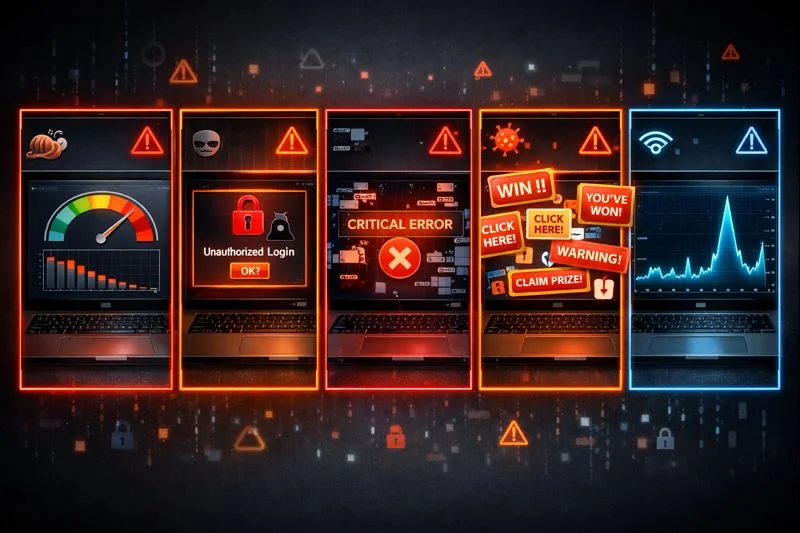
1. Your Device Has Slowed Down
Whenever you feel that your system is suddenly taking longer to start, or you feel a sudden drop in performance, slow startups, apps start to lag without any reason, or delayed responses, then it might be possible that malware could be running in the background and consuming system resources.
2. Unauthorized Access Attempts
Another indicator is alerts about unfamiliar logins, which login alerts you didn’t even initiate, unexpected password reset emails, or blocked sign-in attempts may indicate that malicious software is trying to gain control of your accounts or steal credentials.
3. It’s Crashing or Freezing Quite Frequently
You may face unexpected repeated crashes, blue screens, or apps closing on their own, because it often happens when malware interferes with core system files or normal operating processes.
4. You’re Seeing Unusually Suspicious Pop-Ups & Ads
A sudden flood of pop-ups of ads, fake security warnings, or redirects to suspicious websites is a common sign of adware or browser-based malware, which typically attempts to generate clicks or install additional threats.
5. High Network Activity When You Aren’t Actively Using the Device
This might be another indicator that if your internet usage remains high even when your device is idle, malware may be quietly sending data to external servers without your knowledge.
How to Check for Malware on Any Device
Before explaining each device-specific step, you should keep a universal rule in your mind: update your system first. Always keep your system updated because it improves your chances of detecting and removing malware, and also makes scans more effective.
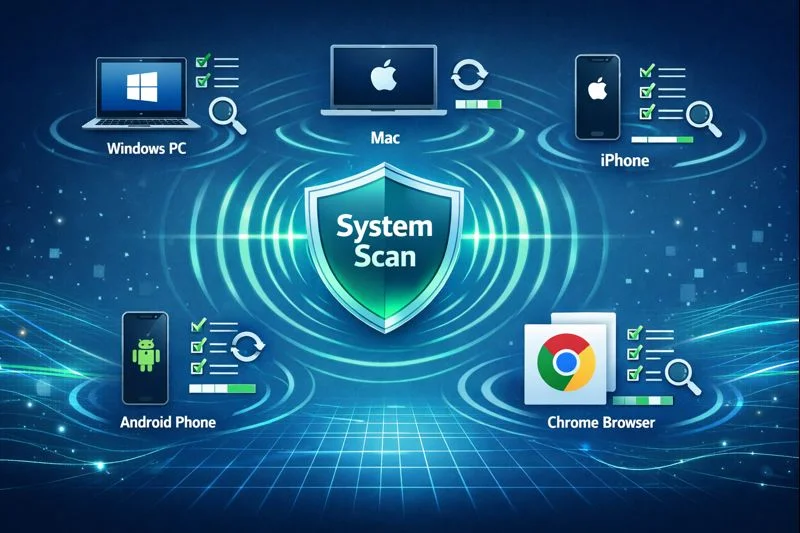
Once you update your system, follow the steps below based on your device:
How to Scan for Malware on Windows 11
If you are wondering how to check malware on Windows 11, you already have a solid tool built in.
- Start by opening your Windows Security from the menu
- Then click on Virus & threat protection
- Select Quick scan or Full scan
- Review detected threats and follow removal instructions
If you want to do a deeper check, use a reputable third-party scanner with Windows Defender. This dual-layer approach will improve your detection accuracy when you learn how to scan for malware on Windows 11 effectively.
How to Check for Malware on Mac
Some Mac users often assume that malware is not a concern, but the reality is, this is an outdated thinking. If you want to know how to check for malware on Mac, start with these steps:
- Open Activity Monitor and look for unknown processes
- Then check Login Items under System Settings
- Review installed apps and remove anything suspicious.
Apple’s built-in protections like XProtect help, but pairing them with a trusted scanner gives better visibility into hidden threats.
How to Scan for Malware on iPhone
Many users ask how to scan for malware on an iPhone, but iOS works differently on desktops. As we know, Apple doesn’t allow traditional malware scanners. That’s why you should:
- Update iOS to the latest version
- Remove suspicious apps
- Check Safari settings and clear website data
- Watch for battery drain or data spikes
Many iPhone issues come from unauthorized profiles or jailbreaking, and when nothing else works, a factory reset is the safest option.
How to Check for Malware on Android
Android offers more flexibility as well as more risk. If you’re learning how to scan for malware on Android, follow these steps:
- Start by using Google Play Protect
- Review app permissions regularly
- Then install a trusted mobile security app
- Avoid sideloading APKs from unknown sources
Android malware often hides in free apps or fake updates, so you have to scan after installing new apps because it is a smart habit.
How to Scan for Malware on Chrome Browser
With all other devices’ malware, browser-based threats are also rising fast. Understanding how to scan for malware on Chrome is an important skill.
- You have to go to Chrome Settings, then reset, and clean up
- Then run Chrome’s built-in cleanup tool
- After that, remove unknown extensions
- And the last step is to reset browser settings if needed
Most Chrome malware lives in extensions, not the browser itself, so keep your extensions minimal to reduce great risks.
7 Prevention Tips To Keep You Protected From Malware
Here are some prevention tips that you should always keep in mind:
- Always keep your OS and apps updated, because regular updates fix security gaps and protect your device from malware.
- Avoid clicking on unknown links, email attachments, because such suspicious links are the most common way to spread malware.
- Use a trusted and reputable antivirus software as it can detect and remove threats before they cause harm.
- Don’t forget to enable firewall protection to block unauthorized access to your system from the internet.
- Always use a standard account to limit admin permissions, and it also reduces the risk of malware making major system changes.
- Back up your data on a regular basis because it ensures that you don’t lose important files if malware strikes.
- Good security is a combination of tools, vigilance, and safe digital behaviour, so always practice consistent security habits.
FAQs
Can my device have malware even if my antivirus shows everything is clean?
Yes. Some malware can hide from antivirus programs, so monitoring unusual behavior is also important.
What’s the fastest way to confirm if a weird behavior is malware or just a system glitch?
The fastest way is to run a full system scan, check recent app installs, and monitor network activity to identify whether it’s a glitch or actual malware.
Does resetting my iPhone/Android/Mac/Windows automatically remove all malware?
Usually yes, but deeply embedded malware may survive if you restore infected backups.
Can malware steal my passwords even if I use a password manager?
Yes, keyloggers or screen-capture malware can still compromise credentials. Even strong passwords and password managers can’t stop malware that records or captures your screen, so keeping your device malware-free is essential.
How do I check for malware if my device won’t even turn on or keeps crashing?
You can use safe mode, bootable antivirus tools, or seek professional help to scan the device.
The Bottom Line
Protecting your devices from malware isn’t just about running occasional scans; it’s about understanding the threats, recognizing warning signs, and taking proactive steps to protect your devices.
Whether you’re on Windows 11, Mac, iPhone, Android, or even just browsing with Chrome, knowing how to check for malware and how to scan for malware properly can save you from data loss, financial damage, and privacy breaches as well.
By combining regular updates, careful browsing habits, trusted security tools, and consistent vigilance, you can easily turn digital risk into digital resilience. The best defense is a prepared user, so don’t wait for a problem to strike; just scan, monitor, and secure your devices today.
Ping us to get a FREE malware analysis audit.