How to Remove Malware From Windows, iPhone, Web Browsers & Android in 2026
Unpopular opinion: Malware is never obvious. You have to look for it, analyze the device behaviors, and never ignore the red flags your instincts are telling you (otherwise it’s gonna break your heart soon 😶🌫️).
So, when you know the exact elements you have to check to spot malware, you’re 87% already there. All you have to do is read this guide to learn how to remove malware from your device.
Whether you’re an iPhone user, an Android enthusiast, a gamer who uses Windows or you’re seeing unusual behavior in your web browsers (Chrome, Microsoft Edge or Firefox), we’ve got you covered in this detailed guide.
So, let’s dive in.
How to Know If Your Device Has Malware?
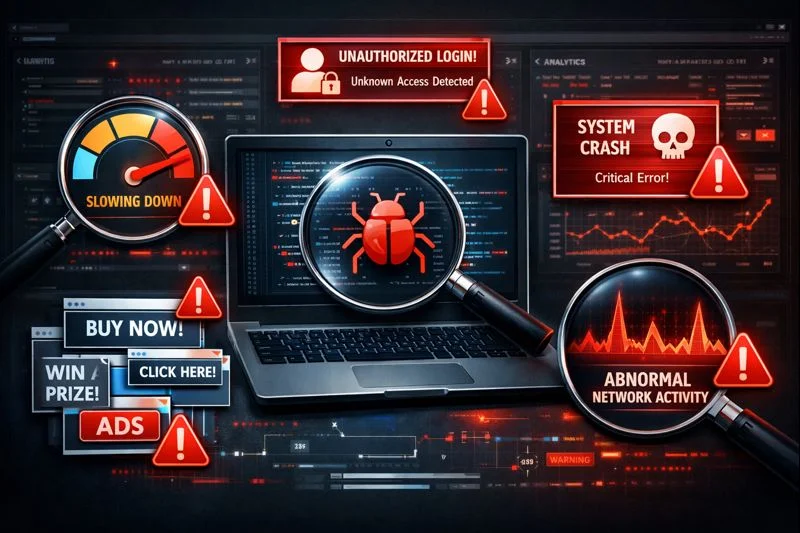
“You can’t solve a problem with the same thinking that created it” ~ Albert Einstein. That’s a famous quote by one of the greatest minds of history. If we try to connect dots, to understand how to remove malware from your device, you first need to learn how to spot malware. Here are the top 5 device behaviors that might be telling you “save me, please”:
- Your device has drastically slowed down
- You’re noticing unauthorized access attempts continuously.
- It’s crashing or freezing frequently lately.
- You’re seeing unusually suspicious pop-ups and ads.
- Seeing high network activity when you’re not even actively using the device.
Depending on the device you’re using, i.e., Android, Mac, or Windows, there are different methods to deeply analyze if your device actually contains malware.
Check out the detailed guide: How to Check for Malware in Any Device
How to Remove Malware From PC (Windows)
So, we’re assuming you have implemented the steps given in “How to check for malware in Windows (PC or laptop)”, and you’re sure your device has malware. And of course, you’re here to get rid of it because it’s unpredictably dangerous. You don’t even know, the hacker might be a ransomware gang or wanna get access to important files of your system.
Here are the quick 5 steps you have to follow to make your device at least somewhat secure before contacting any professional cybersecurity company.
Disconnect Device From the Internet
You don’t have to just disconnect the internet from the infected device, but from all the devices, immediately. Because you never know how far the hacker has their hands on. So, it’s crucial to stop their communication, malware from spreading to other devices, and downloading other malicious software on your PC or laptop.
Here’s the quick 3-step guide:
- Turn off Wi-Fi or unplug the Ethernet cable
- Disable Bluetooth
- Keep the device offline until the cleanup is done
Boot Into Safe Mode
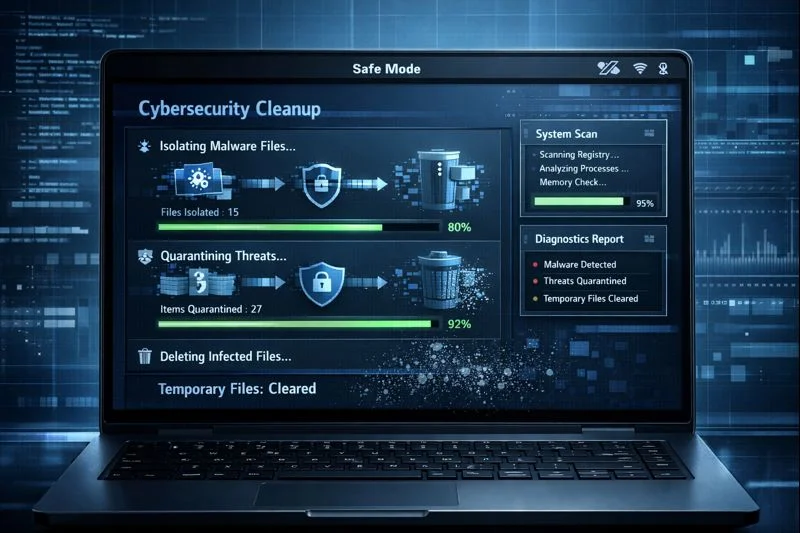
After disconnecting the internet, the next thing you should do is reboot your PC into Safe Mode. This limits background processes and prevents most malware from running automatically during startup, making it easier to detect and remove.
Here’s the quick step-by-step:
- Restart your PC and hold Shift, then click Restart
- Go to Troubleshoot → Advanced options → Startup Settings
- Restart again and press 4 to boot into Safe Mode
Run a Full Malware Scan
Once your system is running in Safe Mode, it’s time to scan your device thoroughly. A full scan helps identify hidden malware files that quick scans usually miss.
Here’s what you need to do:
- Open Windows Security or a trusted antivirus tool
- Select Full Scan (not Quick Scan)
- Let the scan complete, and follow the removal instructions
Remove Suspicious Programs Manually
Sometimes, malware installs itself as normal-looking software to avoid detection. That’s why manually checking installed programs is important.
Here’s how to do it safely:
- Open Control Panel → Programs → Uninstall a program
- Look for unfamiliar or recently installed software
- Uninstall anything suspicious and restart if prompted
Clear Temporary Files and Restart
Even after removal, malware can leave behind temporary files that slow down your system or trigger reinfection. Clearing these files helps clean up leftovers.
Here’s the quick cleanup process:
- Press Win + R, type temp, and delete all files
- Repeat the same steps with %temp%
- Restart your PC normally to complete the process
How to Remove Malware From iPhone
So, if you’ve already noticed unusual behavior on your iPhone and suspect something isn’t right, the next step is to act quickly but carefully. While iPhones are generally more secure than other devices, certain apps, profiles, or browser-based threats can still compromise your privacy and performance. The steps below will help you clean up your device and restore normal functionality without unnecessary risk.
Can iPhones Get Malware?
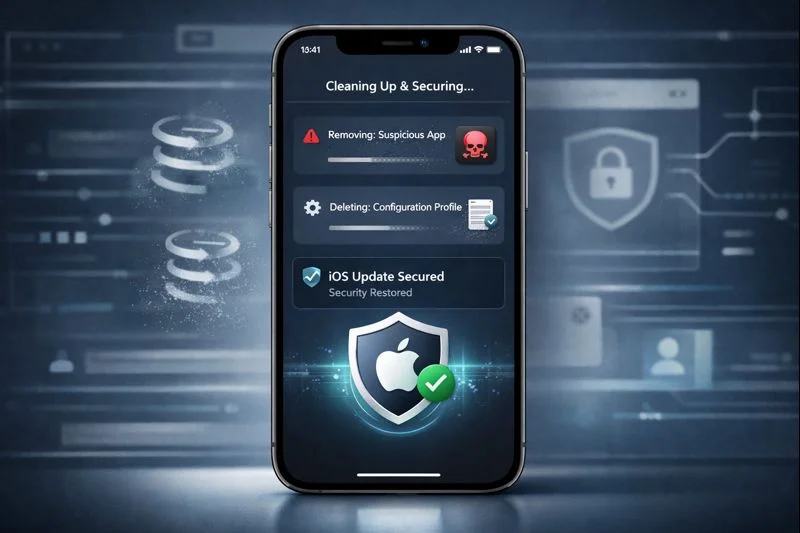
Yup, but not in the way most people think. iPhones are heavily sandboxed, so traditional malware is rare. However, malicious apps, rogue configuration profiles, phishing-based threats, and browser hijacks can still affect performance, privacy, and security.
If your iPhone is overheating, draining battery fast, showing strange pop-ups in Safari, or behaving unusually, it’s worth taking action.
Remove Suspicious Apps and Configuration Profiles
Most iPhone “malware” issues come from shady apps or installed profiles that control device behavior.
Here’s what to do:
- Go to Settings → General → iPhone Storage
- Look for apps you don’t recognize or no longer use
- Delete anything suspicious.
- Then go to Settings → General → VPN & Device Management
- Remove any unknown configuration profiles
Clear Safari Cache and Website Data
Malicious scripts and redirects often live inside browser data rather than the system itself.
Follow these steps:
- Open Settings → Safari
- Tap Clear History and Website Data
- Confirm the action to remove cached files and trackers
Update iOS to the Latest Version
Apple regularly patches security vulnerabilities through iOS updates. Running an outdated version leaves your device exposed.
Here’s how to update:
- Go to Settings → General → Software Update
- Install any available updates
- Restart your iPhone after the update completes
Reset iPhone Settings or Factory Reset (If Necessary)
If the issue persists after all previous steps, resetting the device may be the safest option. This removes hidden configurations and restores system stability.
Here’s what you need to do:
- First, back up your data to iCloud or a computer
- Go to Settings → General → Transfer or Reset iPhone
- Choose Reset All Settings (data remains intact)
- If problems continue, proceed with a Factory Reset
How to Remove Malware From Android
If you’re noticing unusual behavior on your Android device—like aggressive ads, random app launches, or sudden battery drain, it’s likely coming from a malicious app or browser-based threat. Android allows more flexibility than iOS, which also means malware can slip in more easily if you’re not careful. The steps below will help you identify and remove threats safely.

Restart Android in Safe Mode
Safe Mode temporarily disables third-party apps, making it easier to spot which app is causing the issue.
Here’s how to do it:
- Press and hold the Power button
- Tap and hold Power off until Safe Mode appears
- Confirm and let the device reboot
Identify and Uninstall Malicious Apps
Now that only essential system apps are running, suspicious apps are easier to spot.
What to look for:
- Apps you don’t remember installing
- Apps with generic names or no clear purpose
- Apps installed right before the problems started
How to remove them:
- Go to Settings → Apps
- Open suspicious apps one at a time and tap Uninstall
- If an app won’t uninstall, note its name and remove it after exiting Safe Mode
Run a Free Malware Scan on Android
A reputable mobile security app can help detect hidden threats that manual checks might miss.
Here’s what to do:
- Install a reputable antivirus from the Google Play Store
- Avoid unknown “cleaner” or “booster” apps
- Run a full scan and remove any detected threats
- If the scanner flags multiple issues, follow its recommendations before moving on.
Clear Browser Cache and Data
If malware keeps redirecting you or pushing ads, the problem may live in your browser data.
Here’s how to clear it properly:
- Go to Settings → Apps → Chrome (or your default browser)
- Tap Storage
- Select Clear Cache first
- If issues persist, tap Clear Data as well. This removes malicious scripts and saved site permissions.
Factory Reset Android Device (Last Resort)
If malware keeps returning after removal, a factory reset is the safest final option.
Before resetting, make sure:
- You should back up contacts, photos, and important files
- And don’t back up apps, as malware may reinstall itself
To reset:
- Go to Settings → System → Reset options
- Choose Erase all data (factory reset)
- Set up the phone fresh and install apps selectively
How to Remove Malware From Web Browsers (Chrome, Edge, and Firefox)
Browser-based malware is one of the most common and overlooked security issues. Unlike traditional malware, it often doesn’t infect your system files. Instead, it hides inside extensions, browser settings, or cached data, causing constant pop-ups, redirects, fake alerts, or forced search engine changes. The good news is that browser malware is usually easier to remove if you know where to look.
Remove Malicious Extensions
Malicious extensions are a primary cause of browser hijacking and unwanted behavior. They often disguise themselves as productivity tools, ad blockers, or download helpers.
Here’s how to identify them:
- First of all, open your browser’s Extensions/Add-ons page
- You can look for extensions you don’t remember installing
- Be cautious of extensions with vague names, poor reviews, or excessive permissions
How to remove them safely:
- Disable the extension first and observe browser behavior
- If the issue stops, permanently remove the extension
- Restart the browser after removal to apply changes
Reset Browser Settings
If extensions aren’t the only problem, malware may have modified your browser’s settings. This often includes homepage changes, default search engine hijacking, or persistent redirects.
Why are you even doing this resetting hassle?
- Helps restore the default search engine and startup pages
- It will disable all extensions
- Clears temporary data without deleting bookmarks or saved passwords
How to reset:
- Go to Browser Settings → Reset settings
- Confirm the reset option
- Re-enable extensions only after confirming the browser is clean
Check Chrome, Edge, and Firefox for Hidden Threats
Some browser threats don’t appear as obvious extensions. They may be embedded in site permissions, startup behavior, or browser shortcuts.
Here’s exactly what you need to check manually:
- Site permissions: Remove unknown sites allowed to send notifications.
- Startup pages: Ensure no suspicious URLs load on launch.
- Search engine settings: Confirm your default search engine hasn’t been changed.
- Browser shortcuts (Windows): Right-click → Properties → make sure no strange URLs are added after the target path.
For extra safety:
- Run the browser’s built-in cleanup or security check tool
- Update the browser to the latest version to patch known vulnerabilities
Why Browser Cleanup Matters?
Even if your system is malware-free, a compromised browser can still expose personal data, track activity, and redirect traffic to harmful sites. Cleaning your browser properly ensures that malware doesn’t reappear the moment you go back online.
Frequently Asked Questions – FAQs
How do I completely remove malware from my device?
Start by disconnecting from the internet, then scan your device using a trusted security tool. Remove suspicious apps or programs manually, clear browser data, and update your system. In stubborn cases, resetting the device helps. The key is acting methodically, not rushing.
Can free tools remove malware effectively?
Yes, many free tools can detect and remove common malware. They’re usually good for basic threats and adware. However, advanced or deeply embedded malware may need premium tools or professional help. Free tools work best when combined with manual checks.
Does a factory reset remove all malware?
In most cases, yes. A factory reset removes installed apps, settings, and malicious files. But problems can return if you restore infected backups or reinstall the same harmful apps. Resetting works best when you start fresh and install apps carefully afterward.
How long does malware removal take?
It depends on the device and how serious the infection is. Simple cases can take 30 minutes. Deeper infections may take hours, especially if multiple scans or manual cleanup are needed. Rushing the process often leads to missed threats.
Can iPhones get malware without jailbreaking?
Yes, that happens, but it’s rare. iPhones don’t usually get traditional malware, but malicious apps, fake profiles, and phishing-based threats can still cause issues. Most problems come from unsafe links or browser data, not system-level infections.
Final Thoughts: How to Remove Malware
Folks, before you panic that you have malware in your device, it’s crucial to understand that malware is not the dead-end. In fact, once you know you have malware in your device, you’re in control. And plus, now that you deeply understand how to remove malware, it can’t affect your work or personal life in any way. But here’s the thing: you have to take action, right away.
And if the situation gets out of your control, and you think you can’t handle it on your own, we are here for you. We’ll offer you a FREE malware analysis report; all you have to do is leave your details, and we’ll get back to ya within 24 hours.