How To Remove Malware From Mac: The Step-by-Step Guide
Malware on macOS isn’t some dramatic shift in your device behavior, but it’s happening regularly, silently. Have you been under “Apple magic” too? It’s not your fault, until now. But if you keep trusting the Mac’s immune system, it’s time to wake up now.
About 11% of all malware detections on Macs in 2023 were real malware (not just adware). Recently, Apple devices have been targeted more frequently (even more than Windows PCs). That’s alarming, isn’t it?
But guess what? If you understand how to remove malware from Mac, you can easily tackle such issues without any issues. And this is your EXACT guide for it.
Shall we?
How To Check For Malware/Virus on Mac?
“Duh…Mac is safe. I don’t need to worry.” Sounds familiar? 86% of Mac users believe their laptop can’t be infected or attacked with any kind of virus or malware. So, even if they spot alerting signs such as slow performance, pop ads, etc, they don’t pay an inch of attention.
Unfortunately, that’s not the case. Mac can also be infected with a virus or malware, so pay attention to the following bullets. Here are the top 5 steps you need to follow to check if your Mac has malware.
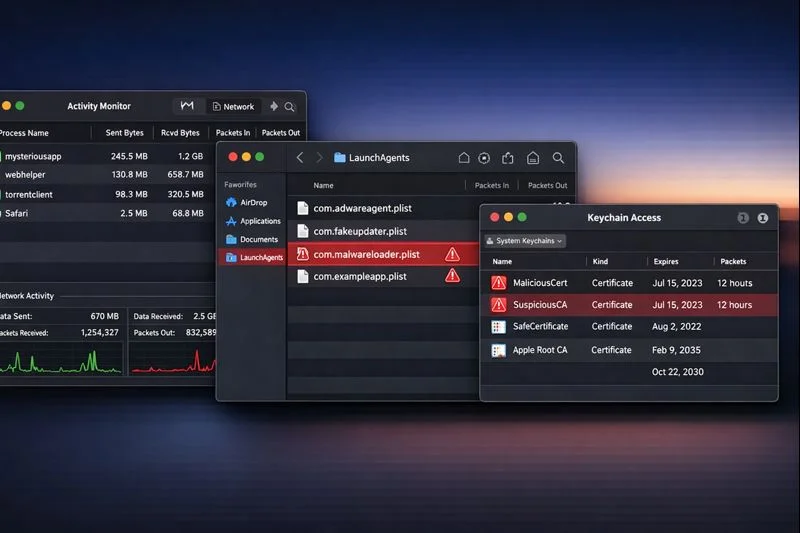
- Inspect Launch Agents: First of all, you have to visit the launch agents from where the malware could enter your device. To inspect it, you have to go to one of these folders in Terminal:
- /Library/LaunchAgents
- /Library/LaunchDaemons
- ~/Library/LaunchAgents
And you have to scan the files with unusual names, such as misspelled app names or names pretending to be system services.
- Analyze Network Activity: Sometimes, malware is sitting silently in the corner, waiting to get a chance to communicate with remote servers for data exfiltration or command-and-control. You can check it upfront by opening the Activity Monitor → Network tab. And then, you have to look for unknown processes connecting unfamiliar IPs or domains.
- Monitor Kernel Extensions (Kexts): To avoid detection, infected kexts are installed. You can detect it by simply opening the Terminal and entering this command (kextstat | grep -v com.apple). If it shows any non-Apple extensions, pay special attention and get it reviewed.
- Inspect the Browser: Most people skip this step, but it’s highly crucial. If malware is present in your device, it can install configuration profiles that will ultimately hijack Safari or Chrome settings. To make sure you’re safe, go to: System Settings → Profiles (or System Preferences → Profiles) and look for unfamiliar profiles that modify DNS, proxy, or homepage settings. And just remove them.
- Audit Keychain and Certificates: This is vital because malware gives access to the hacker to install certificates to intercept encrypted traffic or access accounts. Here’s how to check it:
- Open Keychain Access → System /Login keychains
- Scan the certificates and look for the unknown ones, especially with a trusted mark.
- Delete anything you find suspicious, right away. (Though, Googling it before deleting is a great & recommended practice)
How To Remove Malware From Mac Using Built-In & Trusted Tools
This is your step-by-step and hassle-free guide to removing malware from a Mac in the easiest possible way.
1. Check for macOS Security Updates and Built-In Protection
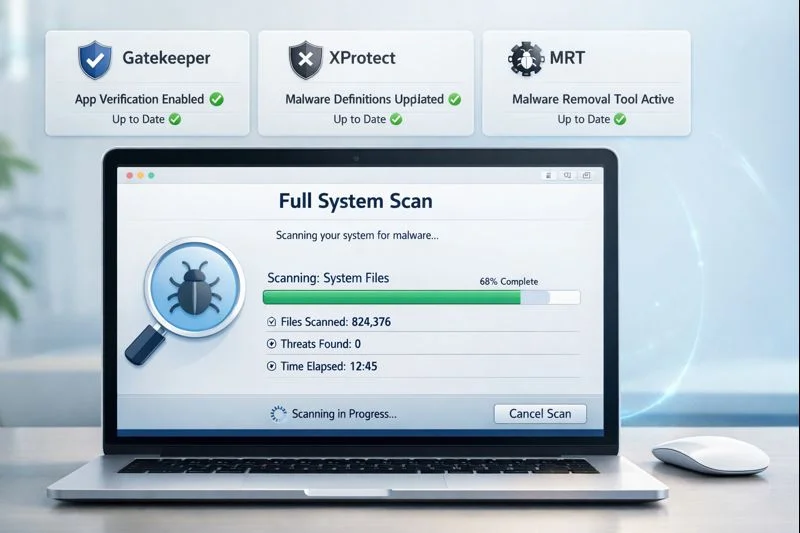
You’ll implement this because you wanna make sure the system is fully updated and using Apple’s built-in protection, such as XProtect, Gatekeeper, MRT, etc. Because in the majority of cases, malware infections exploit outdated OS vulnerabilities, so you can’t ignore this step at any cost if macOS security is something you care about.
Here are the simple steps you need to follow:
- First of all, you have to open the system settings by clicking on the Apple menu.
- Then, select General → Software update. You have to wait for a bit for macOS to check for updates.
- If there are any, install all the available updates and restart your Mac. Don’t forget to enable the automatic updates option.
- Moving on, you have to confirm if all the built-in protection tools are working & enabled. If not, enable them because they’ll protect your device while working silently in the background.
- THE MOST IMPORTANT: Don’t install third-party cleaner apps yet.
2. Run a Full System Scan Using Trusted Malware Tools
Sometimes, the hacker who’s trying to hack your macOS through malware isn’t an easy game. Many macOS threads operate silently inside the system folders, browser data, scripts, or login items without causing obvious performance issues. So, it becomes tough to spot malware with built-in tools. It’s time to take a step further.
Here are 7 steps you need to follow:
- Do some research and choose a trusted malware removal tool (aligned with your budget).
- Install the tool or software on your Mac by following the installer instructions properly.
- If it asks, you have to grant Full Disk Access. Because otherwise, the tool will not be able to scan protected system areas.
- Let the tool update its threat database before scanning. Because that’s gonna help in the detection of the latest malware variants.
- Now, you have to select the “Full Scan” or “Complete Scan” option to begin the show time 😎.
- Wait patiently until the software completes the entire scan. Don’t rush to close the app or shut down the Mac if it takes some time. That’s normal.
- Once it finishes the scan and gives you a report, you have to analyze the detected items, threat types, and affected locations. But don’t remove anything yet.
3. Review Scan Results and Quarantine Detected Threats
Quarantining is a safety measure to prevent the malware from running while giving you a chance to verify what was detected. Because not every item flagged by the malware scanner is harmful. So, you can’t skip this step in the malware removal process of your Mac.
5 simple steps you need to follow at this point:
- Firstly, open the scan results panel and check the list of detected threats after the scan completes.
- Now, this is crucial. You have to review EACH detected item’s file name, location on disk, and threat category, such as adware, spyware, trojan, PUA, etc.
- You have to review the suspicious files with random names, files in temporary folders, browser data, or LaunchAgents, those that are clearly marked as high or severe risk.
- Then, you have to choose “quarantine” instead of immediate deletion. It helps disable the file and moves it to a secure location. And don’t restore those files until you’re 100% sure they’re malware-free.
- Confirm the quarantine action and allow the tool to finish the process.
4. Remove Malicious Files & Restart Your Mac
This is where you permanently get rid of the malware in your Mac. And if there’s any remaining activity left (in case), it’ll be cleared through a restart. All you have to do is follow these simple 5 steps, and you’re good to go.
- Make sure the quarantined items are selected for removal by reviewing the list & ensuring all confirmed malicious items are included.
- Then, you have to choose the permanent removal option in your tool and proceed with the process only after confirming the items are malicious.
- When the tool is in the removal process, don’t interrupt. Once the tool has completed the process, save your work and close everything.
- Then, go to Apple Menu → Restart. Although you don’t have to force this step unless instructed.
- Wait for the restart, and don’t try opening apps immediately after the restart.
5. Verify That Malware Has Been Fully Removed
If you have followed the entire malware removal process, and you didn’t get to know if the process you have implemented worked or not, what’s the point of all this? So, don’t overlook this step, cause it’s apparently the most crucial.
6 hassle-free steps you need to implement to confirm malware is fully removed from your Mac:
- You have to fully scan the system for the second time. So, use the same tool again that you used earlier.
- Double-check the login items (go to System Settings → General → Login Items).
- Whether you’re using Safari or Chrome, it’s time to check the browser behavior. See if there are still any pop-ups, unexpected redirects, or unfamiliar extensions.
- Check if the device is taking normal time to get started, the fan noise is reduced, and the battery usage is stable. Plus, look out for any unusual network activity.
- Don’t restore quarantined files and delete them permanently after a few days if no issues occur.
Best Way To Remove Malware From Mac: Auto vs Manual
To understand clearly if you can handle it manually or if automatic tools are a safer option, as a DIY enthusiast. Otherwise, you can get malware analysis services in Dubai for your business.
Anyway, here’s a table that clearly shows the differences between auto vs manual malware removal from Mac.
| Aspect | Automatic Removal | Manual Removal |
|---|---|---|
| Definition | You use apps or malware scanners to detect & remove threats on auto-mode | You manually locate the malware and delete it using different system tools, Terminal, and folder inspections |
| Ease of Use | Super easy with minimal technical knowledge required | Higher risk of blunders if you don’t have proper technical knowledge |
| Speed | Fast like the speed of light, it can scan entire systems in minutes | Slow yet reliable, each file, folder, and process is inspected |
| Detection Scope | Detects known malware, signatures, adware, spyware, and browser hijackers | Can detect hidden or new malware that auto tools might miss |
| Effectiveness Against Zero-Day Threats | Super limited, it heavily relies on signatures & updates | You have the ability and room to catch suspicious behavior or unknown malware manually |
| Risk of System Damage | Little to no risk if you’re using trusted-by-experts tools and software | If you’re practically inexperienced, it’s highly likely that you’ll mess it up and even face accidental deletion |
| Required Tools | Antivirus/malware scanner, updates | Terminal, Finder, Activity Monitor, Keychain, browser settings |
| Control Over What Gets Removed | Limited, software decides automatically | Full control, the user decides what to delete |
| Best Use Cases | Beginner users, routine scans, minor infections | Advanced users, complex or persistent malware |
| Follow-Up | Automatic updates for continuous protection in the future as well | You need to monitor the login items, scripts, and certificates manually |
| Pros | Fast, super easy, low-risk, and effective for most malware | If given full control, every single malware can be detected |
| Cons | Might not be able to spot deeply hidden malware | Risky, time-consuming, requires patience, and technical skills |
How To Manually Remove Malware From Mac?
If you’re one of those who want to have control over the process and don’t want the software to blindly delete things, then here you go. This is the easy-to-follow checklist you need to manually remove the virus completely from your Mac.
- Disconnect from the internet instantly to prevent malware from communicating.
- Then, go to Activity Monitor → force quit unknown or high-resources processes
- Go to System → General → Login Items and delete all the unknown entries.
- Check and remove unknown files from:
- ~/Library/LaunchAgents
- /Library/LaunchAgents
- /Library/LaunchDaemons
- To remove the unknown applications, application folder → delete apps you don’t recognize. And don’t forget to empty the trash.
- Then, remove all the unknown or unnecessary browser extensions. Plus, reset the homepage, search engine, and notifications.
- To remove all the malicious profiles, go to System Settings → Profiles. And delete all the unknown configuration profiles.
- If you have Keychain Access, then remove untrusted or unknown certificates.
- Restart the Mac.
- Scan the system again with the same tool.
Frequently Asked Questions (FAQs)
How to Confirm Malware If Fully Removed From Your Mac?
After you’re done with removing the malware, you have to re-scan the full system, check login items, and browser extensions after reboot. If the device is behaving normally, you’re successful in removing the malware from your Mac.
How to Remove Malware From Mac If It Keeps Coming Back After Reboot?
When this happens, you should look for persistence mechanisms like Login Items, Launch Agents, configuration profiles, and browser extensions. All you have to do is remove those entries and then rescan your system.
How to Remove Virus from Chrome on Mac?
By removing the suspicious Chrome extensions, resetting Chrome settings, clearing site permissions, and scanning the system for adware, you can remove almost every type of virus & malware from Mac.
How to Remove Malware From Mac when No Suspicious Apps are Visible?
It could be hiding in background scripts, browser data, or system folders. You can detect it by running a full system scan and manually checking Login Items and Launch Agents.
How to Remove Malware From Mac Safari?
The process is pretty much the same as Chrome. You have to remove unknown extensions, reset website permissions and notifications, clear browser data, and check for configuration profiles affecting Safari settings.
The Bottom Line: How To Remove Malware From Mac
When you take the action at the right time, a virus or malware in macOS isn’t a big deal. But you have to understand this as a Mac user, it’s not immune to malware or hacking attacks by default. You have to take a step ahead and add some precautions to protect your device.
But…if your business or organization in Dubai seriously needs professional supervision for malware analysis, hit us up. And get an experienced cybersecurity expert on your side.