
How To Find Spyware In Any Device: Top 5 Signs, And How to Prevent Spyware
You have the wrong imagination of what spyware looks like! No, we’re not calling you out…In fact, you aren’t the one at fault. All the people who aren’t deeply aware of spyware and how it works think the same. But we’re here to burst your bubble.
To understand how to find spyware, you have to understand how it works. And it works suuuuuuuuper quietly. It doesn’t make a noise, and that’s why 99% of the people don’t even notice that there’s some hidden activity going on in their devices.
This detailed guide is made to show you how to find spyware in any device (Windows, Android, or iOS), along with how you can prevent spyware in the long-term.
Shall we?
5 Signs Your Device Might Have Spyware
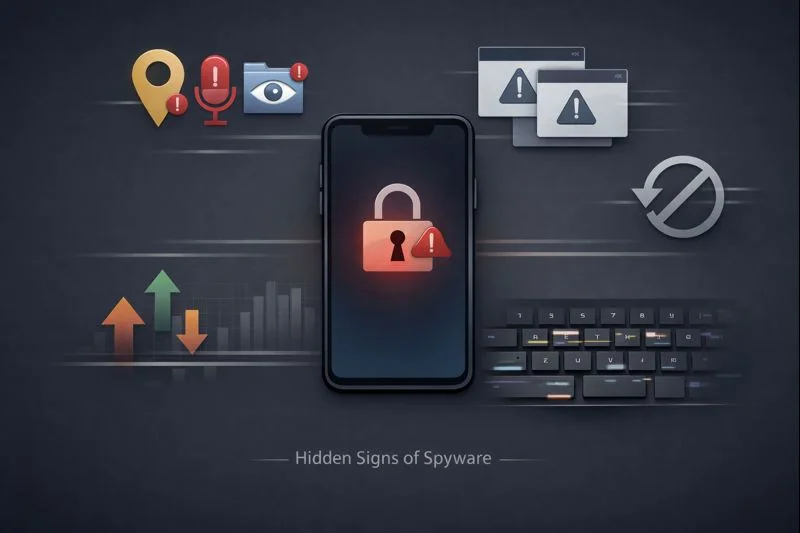
Sometimes, you can’t detect spyware based on the obvious symptoms given in every article published on the internet, such as battery drainage, slow performance, etc. But we’re highlighting some of the expert-level, overlooked signs that can directly tell you if you have spyware or not.
- Special App Access: While inspecting your device, if you see sensitive permissions enabled (that you don’t remember turning on) is the biggest sign of spyware in your device.
- Repeated Security Prompts: If an app keeps asking you for permissions over and over again, after a reboot or update. That’s not the app, but the spyware is trying to break in without drawing attention.
- Mobile Data Usage: Even after you’ve put your phone on airplane mode, the mobile data is continuously being used. That’s spyware trying reconnect when you’ve disconnected the network, to sync data before fully disconnecting.
- Delayed/Blocked OS Updates: Understanding this one is easy, isn’t it? Spyware blocks your OS system updates to save its access in your device.
- Changed Keyboard Behavior: Your clipboard history is removed every now and then, laggy typing, inconsistent autocorrect, and keyboard layout is pointing towards spyware monitoring components running in the background.
How To Prevent Spyware Entering Your Device (In The First Place)
Where there is spyware, there are unneeded granted permissions, trusting infected accounts, and fake profiles & updates. And that’s where the problem starts. Because spyware isn’t equal to “hacking,” but it’s allowed in the device.
And if you want to prevent spyware from stepping into your device (which you obviously do 😀), then read these 3 points with laser-focus. Because you can control whether the spyware gets into your device or not.
- What you install (apps, software, profiles)
- What you approve (permissions, admin access, accessibility, cloud access)
- What accounts stay secured (Apple ID, Google account, Microsoft account)
Understanding how spyware enters your device automatically helps you control it (or at least make it super hard for the hacker). Fully relying on anti-virus & security apps isn’t reliable in 2026, at all.
When a hacker has access to AI-driven persistence mechanisms, long-term prevention only happens before installation, not after detection.
So, the unpopular tip for preventing spyware: build small habits of consistently reviewing permissions, checking profiles, and protecting accounts.
Otherwise, you’ll keep frustrating over “How do I get this DAMN spy out of my phone?”
But we are here for ya 🫂. Keep reading.
How To Find Spyware (In Any Device)
When it comes to detecting spyware, there isn’t any scanner or software that is a one-size-fits-all solution for all devices. In fact, it’s quite the opposite. It’s more of a pattern-based detection, rather than a tool-based detection.
Hence, this short guide on “how to find spyware in any device” will help you (at least) detect if you have spyware in your device or not.

How To Find Spyware On Computer/PC
There are different access levels where spyware sits and monitors your activities, such as startup programs, background services, system-level control points, and network & account clues. Let’s look at each one of them.
- Check Startup & Background Activity: You have to look for unknown entries in the Startup tab, processes running without an open app, and high background CPU or memory usage while the system isn’t running.
- Review Installed Programs & Access Levels: Doing this will catch spyware hiding as legit softwares in Windows. To make sure you don’t have spyware, go to Settings → Installed apps. And then, look for desktop, monitoring, or system utility tools you don’t remember installing. Especially, inspect the apps with always “ON” background permissions.
- System-Level Control Points: To make it impossible for the spyware to survive reboots, remove services running under system-like names, and disable Windows Remote Access to unfamiliar apps.
- Network & Account Clues: Spyware on a network can be more dangerous than local malware. And it typically looks like unknown VPNs or proxy settings, security alerts from your Microsoft account, and unfamiliar devices logging into your account from different locations.
How To Find Spyware On Android
You might already know…installing APKs from unofficial and unreliable sources is the number one gateway of spyware into your Android device. Let’s look at a few areas where spyware might be hiding, and you can catch it.
- Special App Access: Look out for notification access, usage access, and install-unknown-apps permissions for the admin apps you don’t remember approving. Limit the access again and keep an eye on it for the next few days.
- Review Installed Apps: Go to Settings → Apps → See all apps (and make sure the hidden apps are also visible). Now, scan for apps with system-like or weird names. Track their activity and remember, these apps are there to do nothing but damage your device’s security.
- Inspect Background Activity: If some apps are continuously consuming battery or data while they’re not even working, this isn’t normal. Plus, if an app shows up again & again, even after you deleted it, it means the spyware in it is being persistent.
- Network & Account Clues: Getting Google account security alerts for unfamiliar device logins? That’s spyware right there. Because if it gets access at the account-level, it can bypass app detection entirely, and you’d never know that you have spyware in your Android device.
How To Find Spyware On iPhone
Contrary to Android & Windows (PCs & Laptops), spyware relies on account access, configuration profiles, or remote management. Because of how strict iOS limitations are when it comes to apps.
- VPN & Device Management: Check the VPN & device management in iPhone settings. If you see an unfamiliar configuration profile or Mobile Device Management (MDM) installed in your iPhone, you should definitely take it as a serious threat.
- Apple ID Security: Then, you have to secure your Apple ID because if someone can access your Apple ID. That ultimately gives me access to your messages, photos, backups, and location without even touching your phone.
- Installed Apps: When you’re reviewing apps on your iPhone, pay attention to what specific permissions each app requests and how often. Because official App Store apps are heavily restricted.
- Network-Related Settings: Inspecting the unknown VPNs, DNS configurations, or profiles is equally crucial. Because the spyware can re-enable itself even after you remove it from everywhere.
Frequently Asked Questions
How do I remove spyware from my phone?
The moment you know you have spyware in your phone, turn on the Airplane Mode. It cuts the spyware off from their network connection. Then, delete any suspicious apps or files working in the background. Still, if the issue isn’t resolved, you can opt for a factory reset.
How to know if my phone is being monitored?
There are some signs you should keep an eye on to know if your phone is being monitored, such as quick battery drain, slow performance, overheating, unfamiliar apps, or unexpected camera/mic indicators.
How to find spyware apps on your phone?
If you spot an app with no clear purpose that is continuously draining your phone’s battery, that’s the biggest red flag. Plus, inspect app permissions and check location, microphone, camera, SMS, call logs, and contacts. If you see an unfamiliar app with “Allow all the time” for multiple permissions, delete the app immediately.
Is there a way to detect spyware?
Yes, but you can’t just push a “scan” button and have it in front of you. Spyware isn’t easy to detect, so you have to look for patterns at first time such as background activities, delayed lock, shutdown, and continuous low-level data usage.
How to get rid of spyware from my iOS?
First of all, remove any configuration profiles or MDM from Settings → General → VPN & Device Management, because this is the most common spyware vector on iOS. Right after that, you have to secure your Apple ID by changing the password and enabling 2FA.
Final Thoughts: How To Find Spyware In Any Device
Whether spyware entered through permissions, profiles, or account access, the damage has been done. But there’s still hope. Because you can fix it by rebooting, resetting, and updating your permissions & access control.
Still, what’s the point if it’s gonna happen again? To avoid that for future, you have to keep a check on your device settings and background processes (depending on your device). And it doesn’t require any technical skills. So, easy peasy.
But…if you want a cybersecurity professional to have a look at your network, system, or even just a device, you can ping us to get a review for FREE!