How To Remove Trojan Virus From PC, Windows, iPhone, Android in 2026
Since you’re intelligent enough to understand how important your company’s data is for hackers. Trojan virus is one of the most used techniques by the internet morons. Because it doesn’t make a SINGLE sound.
Yup, that’s true. That’s how it works, which is why it brings the most damage to a business or organization. It waits, watches, and steals your data.
Our goal of putting this trojan virus removal guide together is to empower businesses, brands and organizations against this illegal and criminal theft. Because we want businesses to understand THEY CAN protect themselves.
Let’s dive into how to remove trojan virus from your device with the easiest steps.
Shall we?
How to Remove Trojan Virus?
To remove a Trojan virus, the first step is to isolate the infected device to prevent additional damage. Since Trojans may communicate with remote servers, remaining online will provide more opportunity for the Trojan to do damage.
By taking immediate and careful actions, the chances of losing files and becoming reinfected can be minimized. Basic elements of removing Trojans include disconnecting from the internet, running scans with reputable security programs, and manually deleting suspicious programs.
Some Trojan malware infections are easily removable, while others require booting into Safe Mode or performing offline scans to be removed. The important thing is not skipping steps of the process or rushing the process.
How to Remove Trojan Virus from Windows 11?
The system needs to be isolated before removing the Trojan from Windows 11. Trojan requires a complete network access shutdown because it uses remote server connection to operate.
Disconnect Devices from the Internet
These steps stop the Trojan from sending data or downloading additional malicious files.
- Turn OFF the WiFi or unplug the Ethernet cable.
- Disable the Bluetooth
- Do not use the Device until the cleanup is complete
Boot Windows 11 into Safe Mode
By using safe mode, the majority of trojans will not be able to execute at startup.
- Restart the PC while holding the Shift key down.
- Select troubleshoot> advanced option > startup setting
- Restart or press the 4 keys to boot into safe mode.
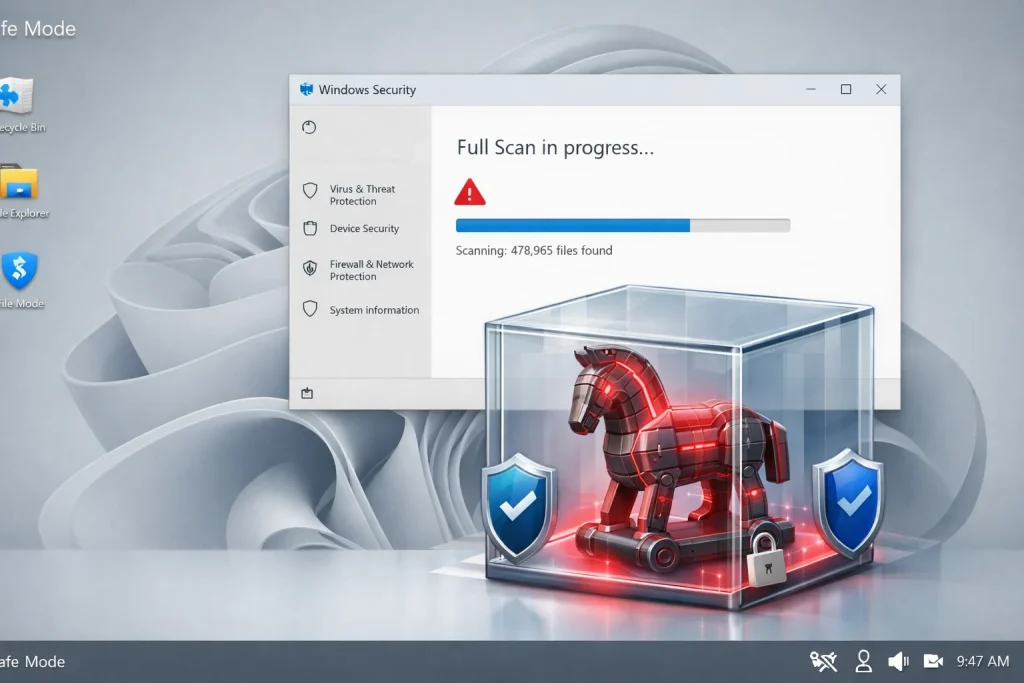
Run a Full Trojan Scan
Using an entire system scan will help you locate Trojan files that may be missed by a regular quick scan.
- Open Windows Security, Virus & Threat Protection
- Choose Scan Options and select Full Scan.
- If you have to, you can run the “Microsoft Defender Offline Scan” as well.
Use a Trusted Third-Party Scanner
Some trojans have built-in security, but it is still important to use another program for protection.
- Download a virus tool such as Malwarebytes or HitmanPro
- Then, run a complete scan so you can remove any problems found.
- Follow removal or quarantine instructions
Remove Suspicious Programs Manually
Trojans can hide their true nature by pretending to be official software.
- Go to setting then Apps, and Installed apps
- Look for unfamiliar or recently installed programs
- Uninstall suspected entries, and reboot.
Clear Temporary Files and Restart
Files left behind may re-infect the system when not removed.
- Press [Win + R] and type temp to find files that should be deleted.
- Repeat the process with %temp%
- Restart the PC normally
How to Remove Trojan Virus from Windows 10?
The Trojan removal process in Windows 10 is similar, which allows you to perform a thorough scan. The system allows users to act quickly, which protects against more severe damage to their systems.
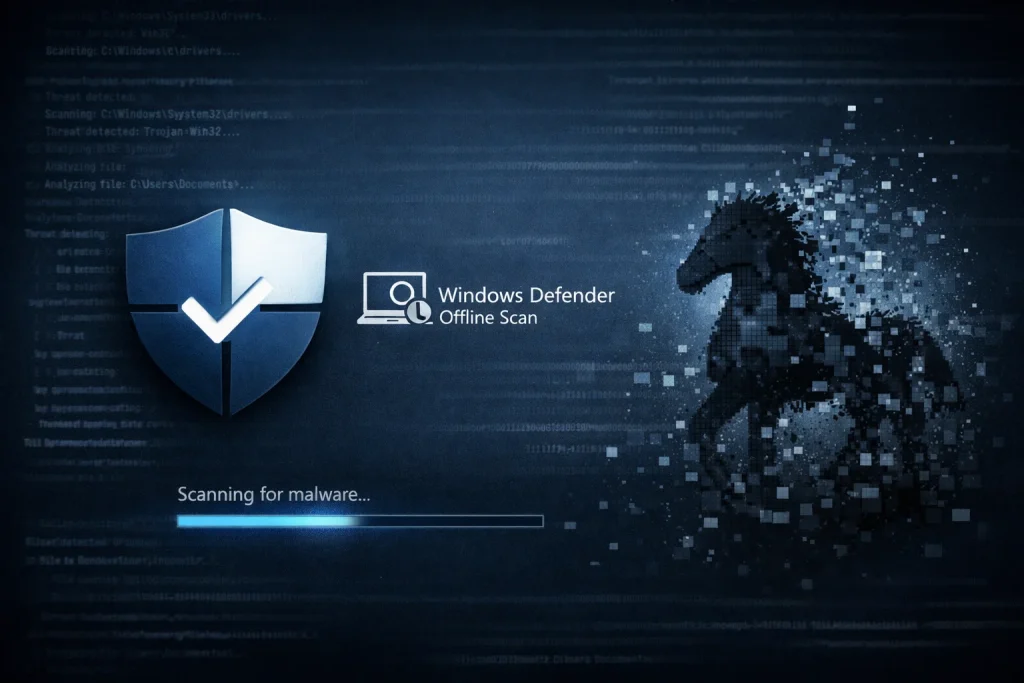
Run Windows Defender Full Scan
This scan will detect the majority of active Trojan threats.
- Navigate to Settings > Update and Security > Windows Security
- Click Virus & Threat Protection > Scan Options
- Select “Full Scan” and start.
Perform Windows Defender Offline Scan
Detects deep trojan viruses by running an offline scan.
- Choose Offline Scan options
- Select Windows Defender Offline scan
- Allow the system to restart and scan
Use Third-Party Removal Tools
Other tools will help confirm removal.
- You can download Malwarebytes, HitmanPro, or Kaspersky Removal Tool
- Run a full scan
- Remove identical detected threats
Uninstall Suspicious Applications
Some Trojans install unwanted background programs.
- Go to Settings > Apps > Apps & features
- Identify unknown software
- Uninstall and restart
Clear Temporary Files
Temporary folders may contain Trojan remnants.
- Open Disk Cleanup
- Select the temporary files
- Delete and reboot the system
How to Remove Trojan Virus on PC?
Once you have detected a Trojan virus on your PC, you must take immediate steps to remove it.
Identify Suspicious Programs
People will notice that Unrecognized programs are often the first sign of a Trojan infection.
- Go to Start > Control Panel > Programs > Uninstall a program.
- Look for any programs that you do not recall having installed.
- Search unknown program names on the internet to verify the program’s legitimacy.
Restart PC in Safe Mode
The Safe Mode can stop system processes and block the execution of trojans.
- Restart the computer
- Press F8 or Shift + Restart
- Select Safe Mode from startup options
Remove Trojan Files Manually
The process of manual cleanup eliminates all remaining infected components from the system.
- The user needs to delete all Trojan-related files from system folders.
- Remove all malicious browser extensions from web browsers.
- Restart the PC in normal mode.
Run Antivirus Software
Antivirus tools ensure no hidden Trojan files remain.
- Install updated antivirus software
- Run a full system scan
- Follow removal or quarantine instructions
How to Remove Trojan Virus from a Laptop?
Laptops serve as common targets for Trojan attacks because they contain both personal information and work-related data.
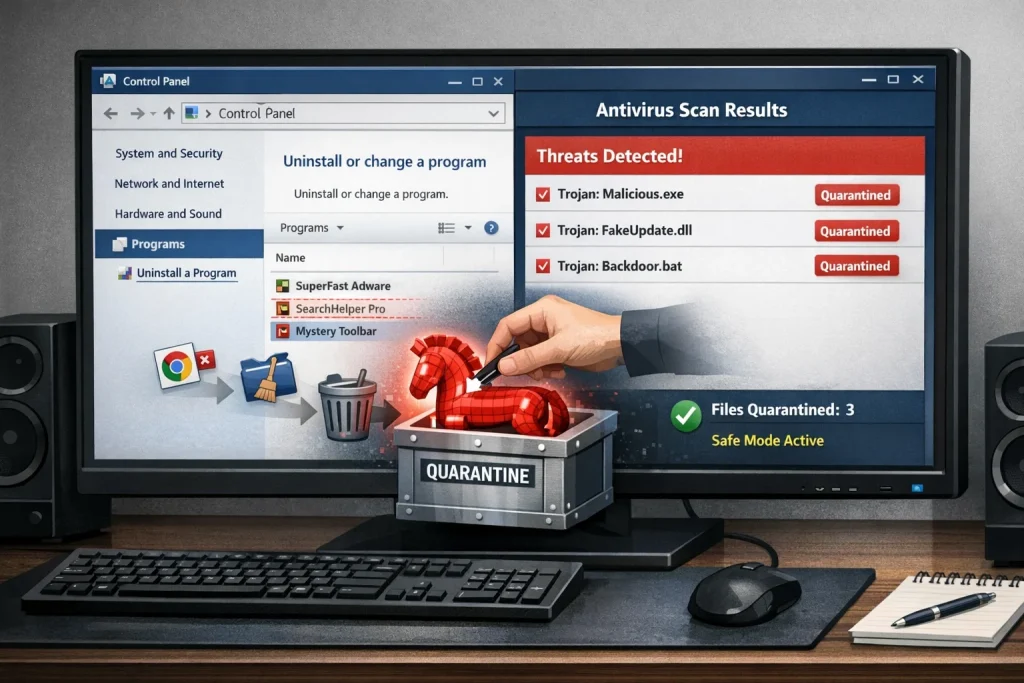
Disconnect the laptop from the Internet
Cutting connectivity prevents the Trojan from transmitting data.
- Turn off Wi-Fi or unplug Ethernet
- Disable Bluetooth
- Keep the device offline during removal
Enter Safe Mode
Safe Mode stops malicious apps from loading automatically.
- Restart the laptop
- Choose Safe Mode from startup settings
- Log in with minimal system services
Run a Full Security Scan
Scanning detects active and hidden Trojan threats.
- Open Windows Security, then Virus & threat protection
- Select Full Scan
- Use tools like Malwarebytes if needed
Remove Suspicious Apps and Extensions
Trojan-related software often appears as normal apps.
- Go to Settings, then Apps & features
- Uninstall unknown applications
- Remove suspicious browser extensions
Change Account Passwords
Trojans often steal stored credentials.
- Change email, banking, and social passwords
- Use a clean device if possible
- Enable two-factor authentication
How to Remove Trojan Virus from an iPhone?
iPhones rarely face traditional Trojans, but malicious apps and profiles can still cause harm. The process requires people to remove both their browsing history and all installed profiles from their system.
Clear Safari Cache and Website Data
Malicious scripts mostly hide in browser data.
- Go to Settings, then Safari
- Click on Clear History and Website Data
- Confirm the action
Delete Unrecognized Apps
Shady apps can compromise privacy and performance.
- Long-press suspicious apps
- Select Remove App
- Delete apps installed around the issue timeline
Remove Unknown Configuration Profiles
Profiles can control system behavior silently.
- Go to Settings > General > VPN & Device Management
- Identify unknown profiles
- Tap Remove Profile
Update iOS to the latest version
Updates patch known security vulnerabilities.
- Go to Settings, then General, then Software Update
- Install available updates
- Restart the iPhone
Factory Reset (If Required)
Persistent issues may require a full reset.
- Back up important data
- Go to Transfer or Reset iPhone
- Choose Erase All Content and Settings
How to Remove a Trojan Virus from Android?
Malicious apps and downloads serve as the delivery system for Android Trojans. The Safe Mode function enables users to identify and remove these threats from their system.
Restart Android in Safe Mode
Safe Mode disables third-party applications.
- Press and hold the power button
- Tap and hold Power off
- Confirm Safe Mode
Uninstall Malicious Apps
Suspicious apps are easier to detect in Safe Mode.
- Go to Settings, then Apps
- Identify the unfamiliar applications
- Tap on Uninstall
Revoke Administrator Permissions
Some Trojans block uninstallation using admin rights.
- Go to Settings > Security > Device Admin Apps
- Disable permissions for the malicious app
- Uninstall the app afterward
Clear Browser Cache and Data
Browser-based Trojans cause redirects and pop-ups.
- Open Chrome, Settings, then Privacy & Security
- Click on Clear browsing data
- Remove cached files
Scan with Mobile Antivirus
Security apps detect hidden Trojan components.
- Install the Malwarebytes, AVG, or Kaspersky
- Run a full device scan
- Remove detected threats
Factory Reset as Last Option
Recurring infections require a clean start.
- Back up contacts and photos
- Go to Settings, System, then Reset options
- Select Erase all data
Frequently Asked Questions
Can a Trojan virus be removed easily?
Yes, most Trojan viruses can be removed easily by using trusted antivirus software if detected early.
What should I do if I get a Trojan virus?
You should disconnect from the internet, run a full antivirus scan, and remove any detected threats immediately.
How long do Trojan viruses last?
A Trojan can stay on your system for months or even years if it is not detected and removed from the system.
Can a Trojan virus record you?
Yes, some advanced Trojan viruses can access your camera, microphone, or keystrokes without your permission.
Never Get Fooled By The “Dummy Horses” Trojan Virus, EVER AGAIN…
Keep these points in mind if you want to fully remove Trojan malware from your devices and systems. Securing your devices from Trojan virus can’t be done with one software or tool.
Once you have followed the above steps for your device, no matter if its laptop, PC, android or iPhone. You have to work on habitual-cybersecurity such as keeping systems updated, avoiding cracked software, verifying downloads and using reputable security tools.
The crux? Prevention is easier than recovery.
But…if you have already got yourself in trouble. Don’t worry, we can handle the heavy-lifting for you. The cybersecurity experts will clean your system without losing business data or system stability. Click here to reach out and get your system Trojan-free.